

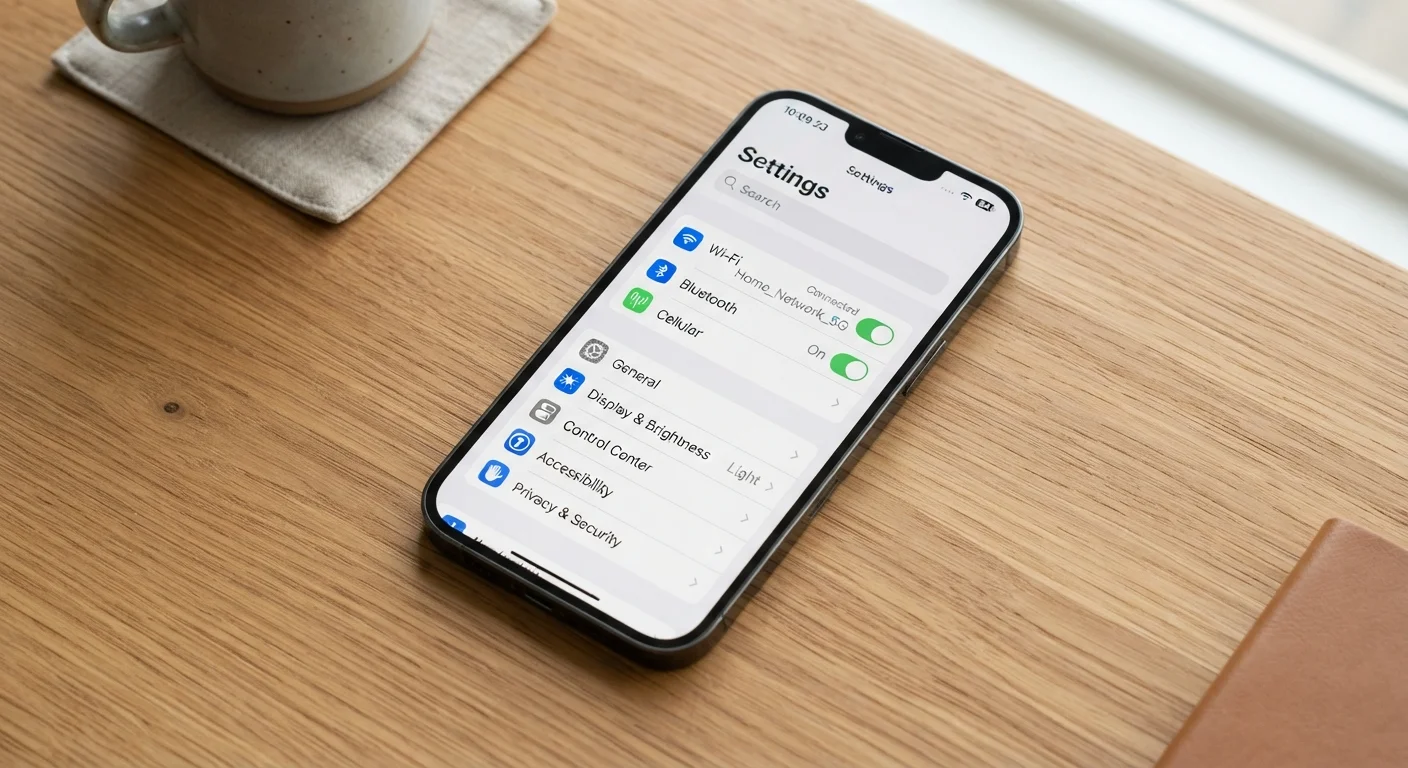
The settings you're probably skipping
Most people set up their phone once and never look back. They learn the basics - calls, messages, a handful of apps - and treat everything else as a mystery not worth solving. That's understandable. Settings menus can feel overwhelming, and it's not obvious which toggles actually matter.
But buried inside both Android and iPhone are features that solve real, everyday problems: getting fewer interruptions during dinner, calling for help faster in an emergency, making the screen easier to read. None of them require a tech background to use. They just require knowing where to look.
Here are seven features worth turning on - or at least trying out. If you're also thinking about what else lives in your settings, our smartphone privacy settings checklist is a good companion read.
Emergency SOS
On iPhones, pressing the side button rapidly five times (or holding side + volume) triggers an emergency call and shares your location with designated contacts. Android devices offer a similar feature - typically found under Safety & Emergency in Settings - that can also capture a photo or video and send it automatically.
This feature is already enabled on many phones, but the emergency contacts are often blank. Taking two minutes to add a trusted person's number makes it genuinely useful rather than just theoretical.
Emergency SOS works best when you've actually added a contact - take two minutes to do it now.
Focus / Do Not Disturb modes
Most people know Do Not Disturb exists but use it as a blunt instrument - everything off, or everything on. Focus modes (available on iPhone and recent Android versions) let you get much more precise. You can set a Work focus that silences social apps, a Sleep focus that allows only family members to reach you, or a Personal focus for weekends.
You can even set them to turn on and off automatically based on time, location, or which app you open. It's one of the most underused time-management tools hiding in plain sight. Our article on keeping your apps organised touches on how reducing notification noise pairs well with a tidier home screen.
Focus modes let you decide exactly who and what can reach you - and when.
Back Tap (iPhone) or Quick Tap (some Android)
iPhone users on iOS 14 and later can assign a double-tap or triple-tap on the back of the phone to trigger a specific action - screenshot, flashlight, mute, or even a shortcut you've built. It sounds like a gimmick, but once you've taken a screenshot without fumbling for two buttons at once, it's hard to go back.
Some Android manufacturers have built in similar features. Look under Accessibility or Advanced Features depending on your device. It takes about 30 seconds to set up.
Back Tap turns an empty patch of glass into a programmable shortcut button.
Live Captions
Live Captions generates real-time subtitles for almost any audio playing on your phone - videos, calls, podcasts, voice messages. It's technically an accessibility feature, but it's broadly useful: watching a video in a noisy waiting room, listening to someone who speaks quickly, or catching a word you missed in a recording.
On Android, find it under Accessibility > Hearing > Live Caption. On iPhone, it's under Accessibility > Live Captions (available on supported models). The transcription happens on-device, meaning the audio isn't sent to a server - a privacy point worth noting.
Live Captions works on-device, so your audio stays private while you read along.
Scheduled battery saver
Battery Saver (Android) and Low Power Mode (iPhone) are things people turn on when they're desperate, not as a routine tool. But both can be scheduled or set to trigger automatically at a specific battery percentage - say, 30%.
Running in battery saver mode proactively, especially overnight or during a long commute, can meaningfully extend how long your phone lasts without requiring you to carry a charger everywhere. Look for this under Battery settings on either platform.
Setting Battery Saver to trigger automatically means you won't need to scramble for a charger mid-day.
Display and text size adjustments
Under Accessibility > Display & Text Size (iPhone) or Display > Font Size and Style (Android), you can increase text size, boost contrast, reduce motion, and more. These aren't just for people with vision impairments - they're for anyone who finds the default text small or who gets headaches from screen animations.
Larger text and bolder fonts cost nothing and can make your phone noticeably more comfortable to use for hours at a time. Many people who try them wonder why they didn't switch sooner.
Bigger text and higher contrast aren't accessibility concessions - they're just more comfortable to read.
App permission review
Most phones now include a built-in privacy dashboard - Privacy > App Privacy Report on iPhone, or Privacy > Permission Manager on Android - that shows exactly which apps have accessed your camera, microphone, location, or contacts recently.
It's worth reviewing this occasionally. You may find apps accessing data you'd prefer they didn't, and revoking permissions takes a few taps. For a deeper look at which specific permissions deserve scrutiny, see our guide on app permissions worth a second look.
Your phone already tracks which apps access your data - most people just never check the report.
Small changes, real difference
None of these features will transform your phone overnight, but any one of them might genuinely improve a frustrating part of your day. The best thing about built-in tools is that they cost nothing extra, require no downloads, and can always be turned back off if they don't suit you.
Start with just one feature
Don't try to enable everything at once. Pick the one feature on this list that sounds most useful for your routine and try it for a week. If it sticks, come back and try another. Small, deliberate changes are easier to keep than a settings overhaul you do once and forget.
If you find yourself wondering why your phone feels cluttered or slow after poking around in settings, our guide on what actually causes a slow phone can help you sort that out without assuming you need a new device.
The content on this site is for informational purposes only and is not a substitute for professional advice. Always consult a qualified professional for guidance specific to your situation.