

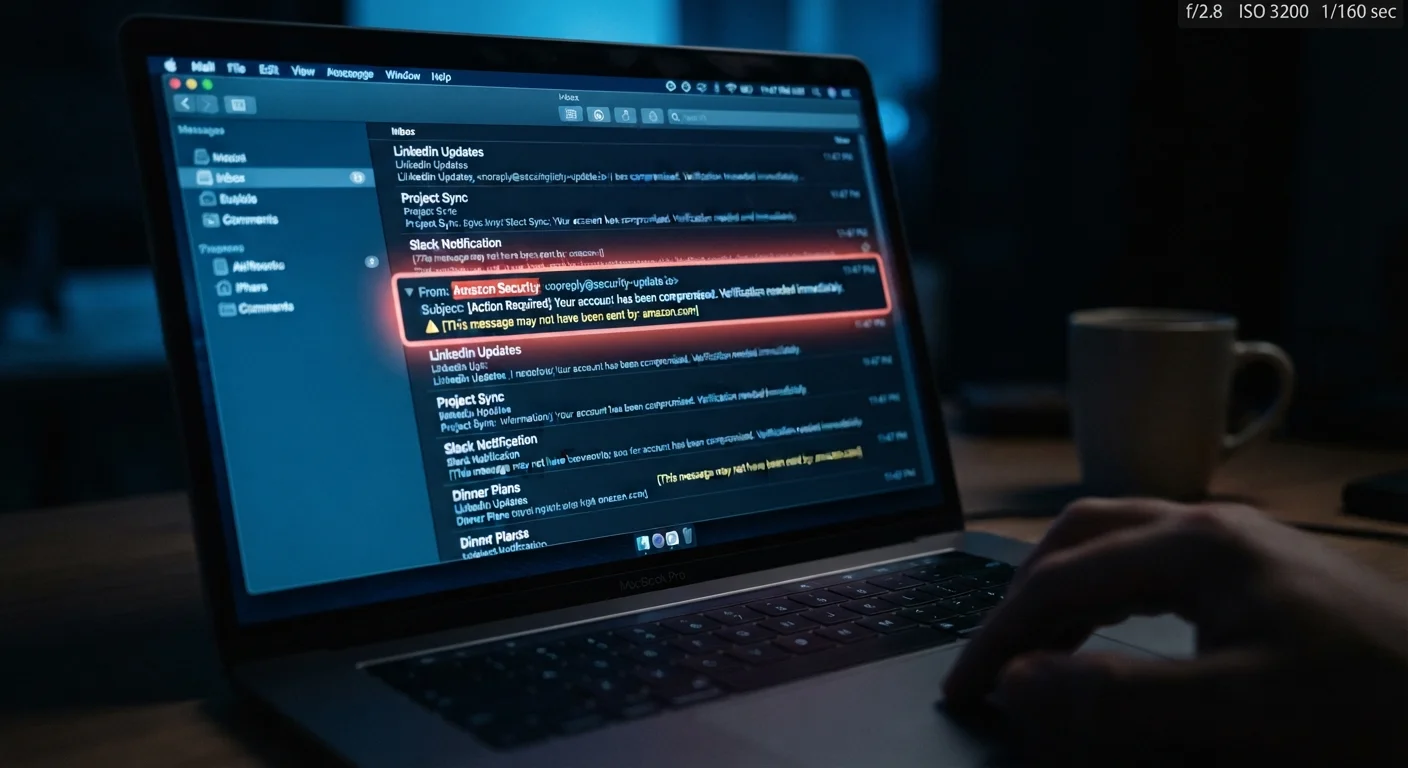
Why Fake Emails Are So Easy to Miss
Scam emails have come a long way from the obvious misspelled messages of years past. Today's fraudulent emails often use real company logos, convincing language, and formatting that's nearly identical to genuine messages. They're engineered to create a split-second reaction - click before you think.
Understanding how these messages work is the first step to resisting them. For a broader look at the types of email and message scams in circulation, our plain-English glossary of online scams covers the most common varieties. And if you're building safer online habits from scratch, our beginner's guide to online safety is a good place to start.
The good news: every fake email leaves clues. You just need to know where to look - and the steps below will show you exactly that.
What you will need
How to Check a Suspicious Email Step by Step
Before you follow these steps, make sure you have what you need:
Email client (web or app)
The interface where you read emails and can inspect sender details and links.
Web browser
Used to navigate directly to a company's official website instead of clicking email links.
Read the sender's actual email address - not just the display name
Email clients show a friendly display name like "PayPal Support", but the real address is often hidden behind it. Click or tap on the sender's name to expand the full address. A legitimate company email will use its own domain (e.g., support@paypal.com). Be suspicious of addresses like paypal-support@gmail.com or anything with random numbers and dashes.
Notice the tone and urgency of the message
Fraudulent emails commonly push you to act fast - "Your account will be closed in 24 hours" or "Unauthorized access detected - respond immediately." This pressure is deliberate. Legitimate companies rarely demand instant action over email and almost never threaten immediate consequences. If a message makes you feel anxious or rushed, slow down instead of speeding up.
Hover over every link before clicking it
On a desktop, resting your mouse cursor over a link (without clicking) shows the actual destination URL in your browser's status bar or a small tooltip. On mobile, press and hold the link to see a preview. If the displayed text says www.yourbank.com but the real URL is something unrelated or oddly long, don't click it. Go to the real site by typing the address yourself.
Look for spelling errors, odd formatting, and mismatched branding
Many phishing emails contain subtle spelling mistakes, awkward phrasing, or low-quality logos that don't quite match the real company's branding. Compare the email's look to a past legitimate message from the same sender, or check the company's actual website. Inconsistent fonts, blurry images, or generic greetings like "Dear Customer" instead of your name are all warning signs.
Verify unexpected requests through a separate channel
If an email claims to be from your bank, employer, or a government agency and asks for personal information, don't reply or click anything. Instead, contact the organization directly using a phone number or website you already know is genuine - not one provided in the email. A quick phone call can confirm whether the message is real in under two minutes.
Never Enter Credentials from an Email Link
If an email asks you to log in - even if it looks exactly like your bank or a service you use - don't follow the link. Open your browser, type the address yourself, and log in from there. Scammers create convincing copycat login pages that steal your password the moment you type it.
Attachments Can Be Dangerous Before You Open Them
Some malicious files begin executing code as soon as your email client previews them. If an email you didn't expect contains an attachment - even a PDF or Word document - don't open or preview it until you've verified the sender through a separate channel, such as a phone call.
Use Your Email's Built-In Spam Reporting
Most email providers let you mark a message as phishing or spam with one click. Doing so helps the provider train its filters to catch similar messages before they reach other users. It takes seconds and makes the whole system safer.
Spotting deceptive language in emails shares something with evaluating other kinds of misleading content - the same instinct you'd use when reading a car listing for warning signs applies here too. And once you've got email scams covered, it's worth checking for the everyday assumptions that leave accounts vulnerable - small habits that are easy to miss but make a big difference.
The content on this site is for informational purposes only and is not a substitute for professional advice. Always consult a qualified professional for guidance specific to your situation.