

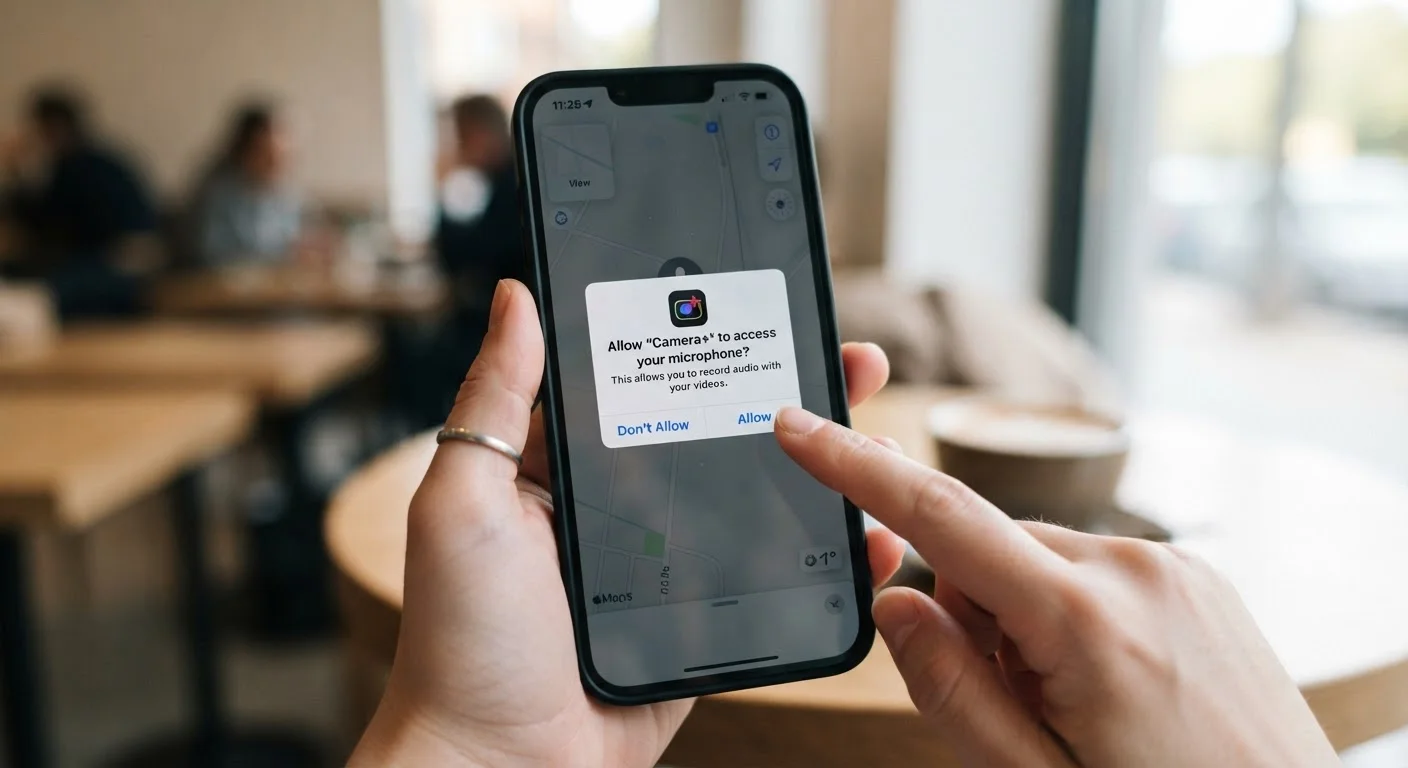
What Actually Happens When You Tap 'Allow'
Every time you install a new app and it flashes a permission prompt, you're making a real decision - not just tapping through a formality. That prompt is your phone asking: Should this app be able to read your contacts? See your precise GPS location? Turn on your microphone?
Granting a permission creates an ongoing agreement. Until you change it, the app can access that resource whenever it runs. Denying it means the app gets nothing from that category - though you can always reverse either decision in your phone's settings.
The key thing to understand is that permissions are modular. Saying no to one doesn't mean the app stops working entirely. Most apps can function with a subset of permissions - only specific features tied to that resource go offline.
Check Permissions Before You Install
On the Google Play Store, you can review an app's permission requirements on its listing page before downloading. On iPhone, iOS prompts appear at first use rather than install - but you can still audit all app permissions in Settings before granting anything. A quick scan takes under a minute and helps you decide whether the trade-off makes sense.
A Plain-Language Guide to Common Permission Types
Here's what the most common permission requests actually mean in practice:
- Location: The app can read your GPS coordinates. Some apps offer 'while using' vs. 'always' - the latter means tracking continues in the background, even when the app isn't open.
- Camera: The app can activate your phone's camera to take photos or video. This doesn't mean it's recording you constantly - it can only use the camera when you actively open the app and trigger that feature.
- Microphone: The app can capture audio. Voice-to-text, call apps, and voice search legitimately need this. A flashlight app asking for microphone access, on the other hand, has no obvious reason to need it.
- Contacts: The app can read names, phone numbers, and email addresses stored on your phone. Messaging apps often use this to help you find friends. Be aware that this also means your contacts' data is shared, not just your own.
- Photos / Media: The app can browse and read images or files you've stored. Photo editors and social apps need this. Many apps ask for access to your entire library when they only need to upload one image.
- Notifications: The app can send you alerts. This one doesn't affect your data directly, but it does affect your attention. Managing notification permissions is a separate skill worth developing.
- Bluetooth: The app can connect to nearby devices. Relevant for speakers, wearables, or car systems - less obvious for a recipe app.
Permissions Don't Mean Constant Surveillance
Granting camera or microphone access doesn't mean an app is recording you around the clock. Both iOS and Android display an indicator (a colored dot or icon) in the status bar whenever the camera or microphone is actively in use. That said, limiting access to apps that genuinely need it is still a reasonable privacy habit.
How to Spot a Reasonable Request vs. a Red Flag
The simplest test: does the permission match the app's stated purpose? A navigation app needs location. A photo-editing app needs camera and photos. A banking app needs none of those - it needs secure login and network access.
Red flags worth pausing on:
- A game or utility app requesting contacts, microphone, or location with no in-app feature that explains it.
- An app requesting 'always on' location when occasional access would do the job.
- A new app requesting access to files or photos before you've even used it once.
You don't have to be suspicious of every request. But a quick mental check - why would this app need this? - takes three seconds and costs nothing. For a deeper audit of which permissions deserve ongoing scrutiny, see app permissions worth a second look.
45%
Apps requesting more permissions than needed
Research from mobile security analysts has consistently found that a significant share of apps in major app stores request permissions beyond what their core function requires.
3 in 5
Smartphone users who never review app permissions
Surveys on mobile privacy habits suggest most users grant permissions at install and rarely revisit them afterward through device settings.
Taking Back Control After the Fact
If you've been tapping 'Allow' without thinking about it, you're not stuck. Both iPhone and Android let you audit and revoke permissions at any time.
On iPhone: Go to Settings → Privacy & Security. Each permission category lists every app with access. Tap any app to adjust its level or turn it off entirely.
On Android: Go to Settings → Privacy → Permission Manager (exact wording varies by manufacturer). You'll see the same category-by-category view.
A good habit: after installing an app, use it for a few days, then revisit which permissions it actually needed. You'll often find you can revoke one or two without losing any functionality you care about.
For a broader privacy checkup, our smartphone privacy settings guide walks through location access, ad tracking, and app data sharing on both platforms. And if you're curious about what else free apps might be collecting beyond permissions, the hidden costs inside free apps is worth a read.
Frequently Asked Questions
Usually, yes - at least partially. Denying access to contacts won't stop a game from running, for example. Some features that depend on the denied permission won't work, but the app itself won't be deleted or blocked from opening.
Go to your phone's Settings, find the Privacy or Apps section, and look for Permissions. On both iPhone and Android, you can see a list of every app with access to a specific resource and toggle them off individually.
Allowing location access while using a navigation app is generally reasonable - that's the core function. However, granting 'always on' location access means the app tracks your position even when you're not using it, which is a higher bar to clear.
Sometimes it's legitimate - a feature you haven't used yet requires a certain access. Other times, apps request more than they need to build a data profile. If the permissions don't match the app's function, that's worth a second look.
The underlying categories are similar, but the controls differ. iOS tends to offer more granular options (like location 'once' vs. 'while using'). Android gives you more system-level control over permissions in bulk. Both let you manage permissions per app in Settings.
The content on this site is for informational purposes only and is not a substitute for professional advice. Always consult a qualified professional for guidance specific to your situation.