

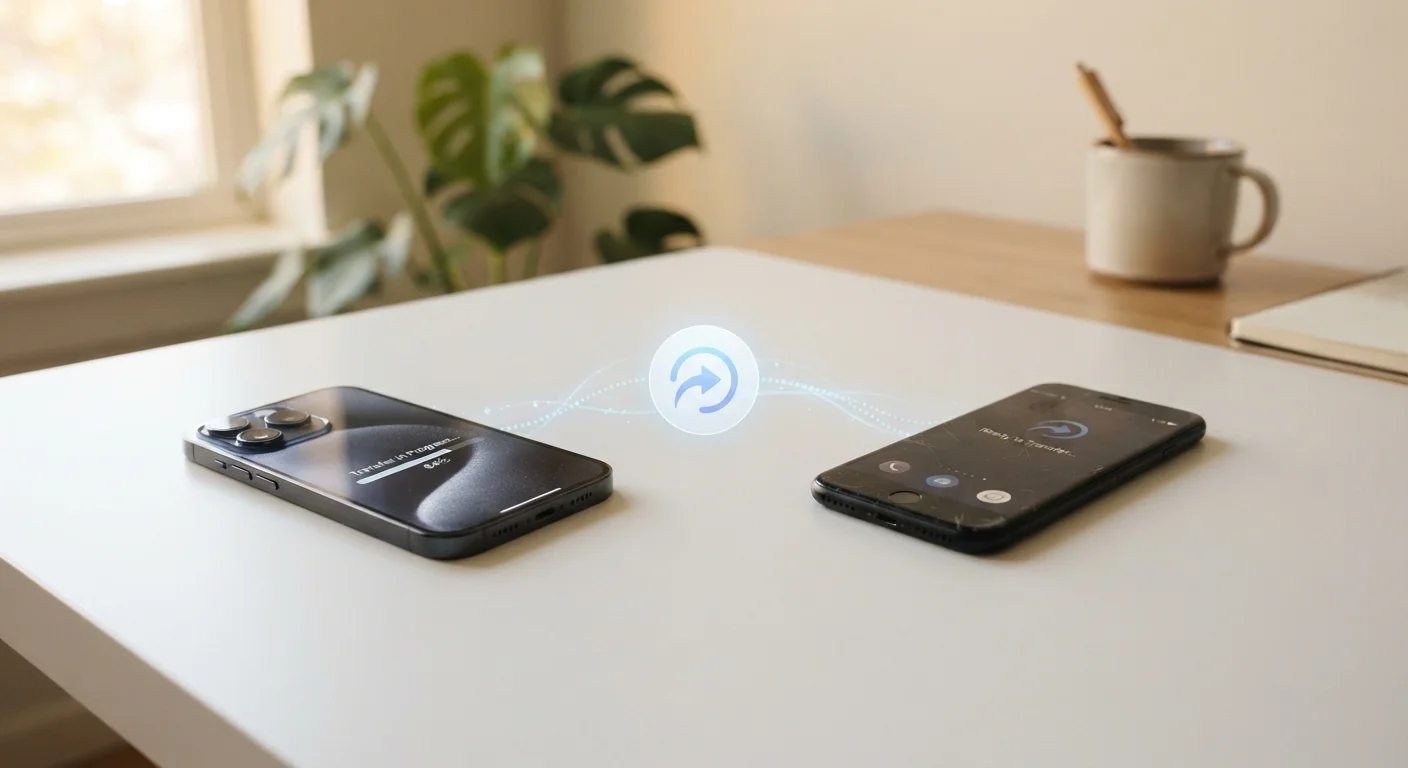
Why Phone Transfers Feel Stressful (And Why They Don't Have to Be)
Getting a new phone should feel exciting - but for most people, the first thought is: am I going to lose everything? Years of photos, a carefully built contacts list, apps you rely on daily. It's a reasonable worry, and it explains why many people hold on to aging phones longer than they should.
The good news is that both major smartphone platforms - Android and iPhone - have invested heavily in making transfers as automatic as possible. If you're staying within the same ecosystem (Android to Android, or iPhone to iPhone), the process is close to seamless. Switching between platforms takes a few more deliberate steps, but it's entirely manageable. If you're curious about how the two platforms approach things differently at a deeper level, our article on how Android and iOS actually differ puts that in plain context.
The key to a smooth switch is preparation, not technical skill. Follow the steps in order, don't rush, and you'll arrive on your new phone with your digital life intact.
What you will need
Google Account (Android)
Backs up contacts, app data, call history, and settings automatically to Google's servers for easy restore on a new Android device.
Apple ID / iCloud (iPhone)
Backs up photos, messages, app data, and settings to iCloud, which restores automatically during iPhone setup.
Move to iOS app (Android to iPhone)
Google Play app provided by Apple that wirelessly transfers contacts, photos, messages, and some app data when switching platforms.
Google Drive or Google Photos (iPhone to Android)
Free apps that back up iPhone photos and contacts to Google's cloud so they're accessible on a new Android phone.
USB cable or Wi-Fi connection
Required for wired transfer methods and recommended to be active for all wireless transfers to ensure speed and stability.
Step-by-Step: How to Transfer Your Phone
Back Up Before You Begin
Never start a phone transfer without first completing a full backup of your old device. If anything goes wrong mid-transfer - a dead battery, a dropped connection, a software glitch - your backup is the only way to recover your data. Both Android and iPhone make this straightforward, and it takes only a few minutes to confirm the backup is complete before you proceed.
Charge Both Phones Fully First
A transfer that dies halfway through is the most common source of data loss during a phone switch. Plug both devices in before you start, and keep them charging throughout the process. Many transfer tools will actually warn you or refuse to proceed if battery levels are too low.
Back up your old phone completely
Android: Go to Settings → System → Backup and make sure Back up to Google Drive is turned on. Tap Back up now and wait for it to finish. Your contacts, app data, call history, and Wi-Fi passwords are included.
iPhone: Go to Settings → tap your name → iCloud → iCloud Backup → Back Up Now. Stay on Wi-Fi until the backup completes. The date and time of the last successful backup appears on that screen - confirm it updates before moving on.
Gather your tools and log in details
Before touching your new phone, collect everything you'll need nearby: both phones, a charger for each, your Wi-Fi password, and a list of any app passwords you know you'll have to re-enter. Pay particular attention to banking apps and any two-factor authentication apps - note which accounts use them so you don't get locked out later.
Start setup on your new phone and choose your transfer method
Power on your new phone and follow the on-screen setup steps until you reach the data transfer screen.
- Android to Android: Select Copy data from old device. You can use a cable connection or hold the phones near each other for a wireless transfer. Sign in to your Google Account and choose what to restore.
- iPhone to iPhone: When prompted, hold your old iPhone near your new one. The Quick Start screen appears automatically. Follow the prompts to transfer directly or restore from your iCloud backup.
- Android to iPhone: On your new iPhone's setup screen, choose Move Data from Android. Install the free Move to iOS app on your Android, then follow the on-screen code pairing steps.
- iPhone to Android: Sign in to Google Drive and Google Photos on your old iPhone first and let them complete a sync. On your new Android, sign in with the same Google Account during setup - your contacts and photos will be waiting.
Restore your apps
Android: After signing in to your Google Account, your previous apps are listed automatically. Select all or choose specific ones, and the Play Store installs them in the background.
iPhone: When restoring from an iCloud backup, your apps are queued to re-download from the App Store automatically. This can take time depending on how many apps you have and your internet speed - the phone is fully usable while it continues in the background.
If you're switching platforms, you'll need to find and install equivalent apps manually from your new app store. Note that any apps you paid for on one platform do not transfer to the other - you may need to repurchase them.
Re-verify accounts that need it
Once your apps are installed, open the ones that matter most and log back in. Banking and financial apps almost always treat a new device as an unrecognised login and will ask you to verify your identity - usually by sending a code to your email or phone number. Work through these one at a time.
If you use a two-factor authenticator app, this is where you'll need to complete the account transfer you prepared in Step 2. Check that each important account is accessible before you power down your old phone.
Check your privacy and security settings
A fresh device often means factory-default settings, which may not match your preferences. Take a few minutes to review location permissions, notification access, and lock screen security on your new phone. This is also a good moment to set up biometric login - fingerprint or face unlock - if you didn't do so during initial setup.
For a guided walkthrough of what to check, see our privacy settings checklist and smartphone security guide.
Once everything is set up and verified, take a moment to explore what your new phone offers. There are often useful features sitting quietly in settings that most people never discover - our guide to smartphone features most people never turn on is worth a read. And if you want to get your apps and home screen properly organised from the start, keeping your apps organised and your phone usable has practical advice.
Two-Factor and Banking Apps Need Special Attention
Authentication apps (like Google Authenticator or similar tools) and most banking apps do not transfer automatically. If you rely on an authenticator app for two-factor login, you'll need to migrate it manually before wiping your old phone - otherwise you could be locked out of important accounts. Check each bank or financial app individually; most require you to log in on the new device and verify your identity through a separate process.
The content on this site is for informational purposes only and is not a substitute for professional advice. Always consult a qualified professional for guidance specific to your situation.