

Why Phone Clutter Is a Real Problem
Most of us don't set out to have a chaotic phone. Apps accumulate gradually - one download for a trip, another for a sale, a few more you can't even place. Before long, finding something you actually need feels like rummaging through a junk drawer.
The average US smartphone user has more than 80 apps installed, but uses fewer than 10 on any given day. That gap between what's installed and what's used is where the clutter lives - and it slows you down in small, constant ways.
80+
Average apps installed per US smartphone
Research from app analytics firm data.ai (formerly App Annie) has consistently shown US users have over 80 apps installed, but use fewer than half regularly.
~9
Apps used daily by the average person
Studies on mobile usage patterns suggest the typical smartphone user actively engages with fewer than 10 apps on any given day, despite having far more installed.
The good news: getting organized doesn't require starting over or learning anything complicated. It's mostly about making a few deliberate choices about what stays, where it lives, and what deserves space on your main screen.
Start With an App Audit
Before rearranging anything, figure out what you're actually working with. Go to your phone's storage settings - both Android and iOS show you a full list of installed apps, often with the date you last used each one. That last-used date is your most useful filter.
Run an app audit at least every three months
Apps you downloaded and forgot still take up storage, may run background processes, and sometimes continue collecting data. Regular audits keep your phone lean and ensure you're only keeping what earns its place.
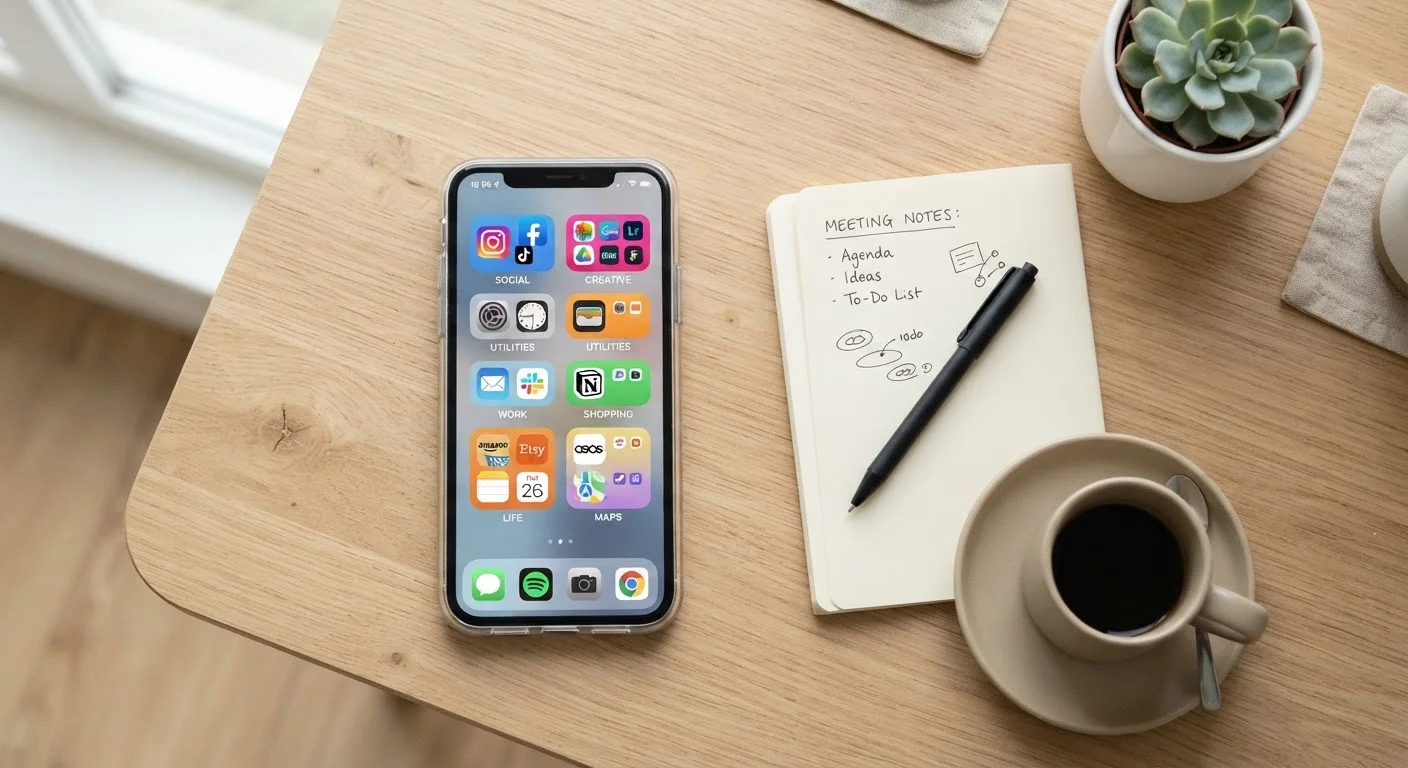
Group apps into folders using broad, intuitive categories
Searching through dozens of loose icons is slow and mentally tiring. Folders reduce visual noise and let your brain know exactly where to look without thinking hard.
Limit your main home screen to daily-use apps only
Your home screen is prime real estate. Filling it with rarely used apps means scrolling past things you don't need every time you unlock your phone.
Use your phone's built-in organization features before adding third-party tools
Both Android and iOS include sorting, library, and focus tools that most people never explore. These are more stable, better integrated, and require no extra downloads.
Pair app organization with notification management
A tidy home screen still feels chaotic if every app is pinging you constantly. Organizing your apps and your alerts together gives you real calm, not just visual order.
While you're at it, check how much storage each app is using. Some apps - especially games and streaming services - cache large amounts of data over time. Clearing that cache, or removing the app entirely, can meaningfully free up space.
If you're also thinking about what data those apps can access, our guide on app permissions worth reviewing walks you through what to look for.
Building a Folder Structure That Works
Once you've trimmed the list, it's time to organize what's left. Folders are the simplest and most effective tool here - but the way you label and fill them matters.
Name Folders for How You Think, Not How Apps Are Categorized
App stores categorize things like 'Productivity' or 'Lifestyle' - but those labels might mean nothing to you personally. Name your folders based on what you're doing: 'Money', 'Getting Around', 'Staying Healthy'. You'll find apps faster when the folder name matches your mental shortcut.
Android vs. iOS: Small Differences Matter
The steps for creating folders, using an app drawer, or hiding apps vary between Android and iOS. Android gives you more flexibility in layout customization, while iOS offers the App Library - a system-sorted space that automatically categorizes everything not on your home screen. Check your phone's built-in help section or manufacturer support site for model-specific steps.
Keep folder sizes manageable. A folder with 20 apps is almost as hard to navigate as a screen full of loose icons. Aim for five to eight apps per folder as a rough guide.
If you find yourself creating a folder for just one or two apps, reconsider - either merge it with a related folder or let those apps sit on a secondary screen on their own.
Designing a Home Screen You'll Actually Like
Your home screen is what you see every time you unlock your phone. It's worth being deliberate about it.
“The best interface is one that gets out of your way. If your phone demands your attention just to navigate it, something has gone wrong.”
— Tristan Harris, Technology ethicist and co-founder of the Center for Humane Technology
Keep your most-used apps here - the ones you reach for without thinking. For most people that's a messaging app, a maps app, the camera, and maybe a browser. Everything else can live one tap deeper in a folder or a secondary screen.
Both iOS and Android have features that help with this. iOS users can use the App Library (swipe left past your last home screen page) to let the system sort everything not on your main screens automatically. Android users can customize their app drawer similarly. Our article on smartphone features most people never turn on covers these tools in more detail.
Keeping It Organized Over Time
Organization isn't a one-time fix - phones get messy again, especially when you're downloading apps quickly or switching between devices. Building a small habit around maintenance is what actually keeps things tidy long term.
Notification overload often compounds the feeling of a chaotic phone. Once your apps are sorted, it's worth reviewing your alert settings too. Our piece on why apps keep asking to send you notifications explains how to take back control without silencing things you actually need.
If you're thinking more broadly about phone security alongside organization, our smartphone security guide is a solid next step.
The content on this site is for informational purposes only and is not a substitute for professional advice. Always consult a qualified professional for guidance specific to your situation.