

Start here
Why Smartphone Security Matters for Everyday People
Next
Lock Screens and Authentication: Your First Line of Defense
Then
App Permissions: What You're Actually Agreeing To
Important
Phishing and Scam Links on Mobile
Round it out
Software Updates, Backups, and Network Safety
Why Smartphone Security Matters for Everyday People
Your smartphone is likely one of the most personal objects you own. It holds your photos, your banking apps, your email, your messages - essentially a detailed map of your daily life. That's precisely why it's a target.
Security threats don't only affect tech-savvy users or high-profile individuals. Everyday people are frequently targeted because attackers rely on volume: send enough deceptive texts or set up enough fake login pages, and someone will fall for it. The good news is that a handful of consistent habits - none of which require technical expertise - dramatically reduce your exposure.
This guide walks through the core areas: locking your device, managing what apps can access, recognizing mobile scams, and keeping your phone's software healthy. For a broader introduction to staying safe online beyond just your phone, this beginner's overview of online safety is a useful companion read.
Authentication
The process your phone uses to verify it's really you - through a PIN, password, fingerprint, or face scan - before granting access.
App permissions
Settings that control which parts of your phone - like your camera, location, or contacts - each app is allowed to access.
Phishing
A scam where someone sends a fake message or creates a fake website to trick you into handing over passwords or personal information.
Smishing
A type of phishing scam that arrives as a text message (SMS) rather than an email, often pretending to be a delivery service or bank.
Two-factor authentication (2FA)
An extra security step where, after entering your password, you also confirm your identity through a code sent to your phone or generated by an app.
Operating system update
A software update from your phone's manufacturer that often includes patches - fixes for security vulnerabilities that could otherwise be exploited.
Lock Screens and Authentication: Your First Line of Defense
If someone picks up your unlocked phone, no other security measure matters. A strong lock screen is your most immediate protection.
Modern phones offer several options: a PIN, an alphanumeric password, a fingerprint, or face recognition. Biometric options (fingerprint and face ID) are convenient and generally reliable for everyday use, but they work best when paired with a strong backup PIN - because biometrics can fail in certain conditions, like wet fingers or low light.
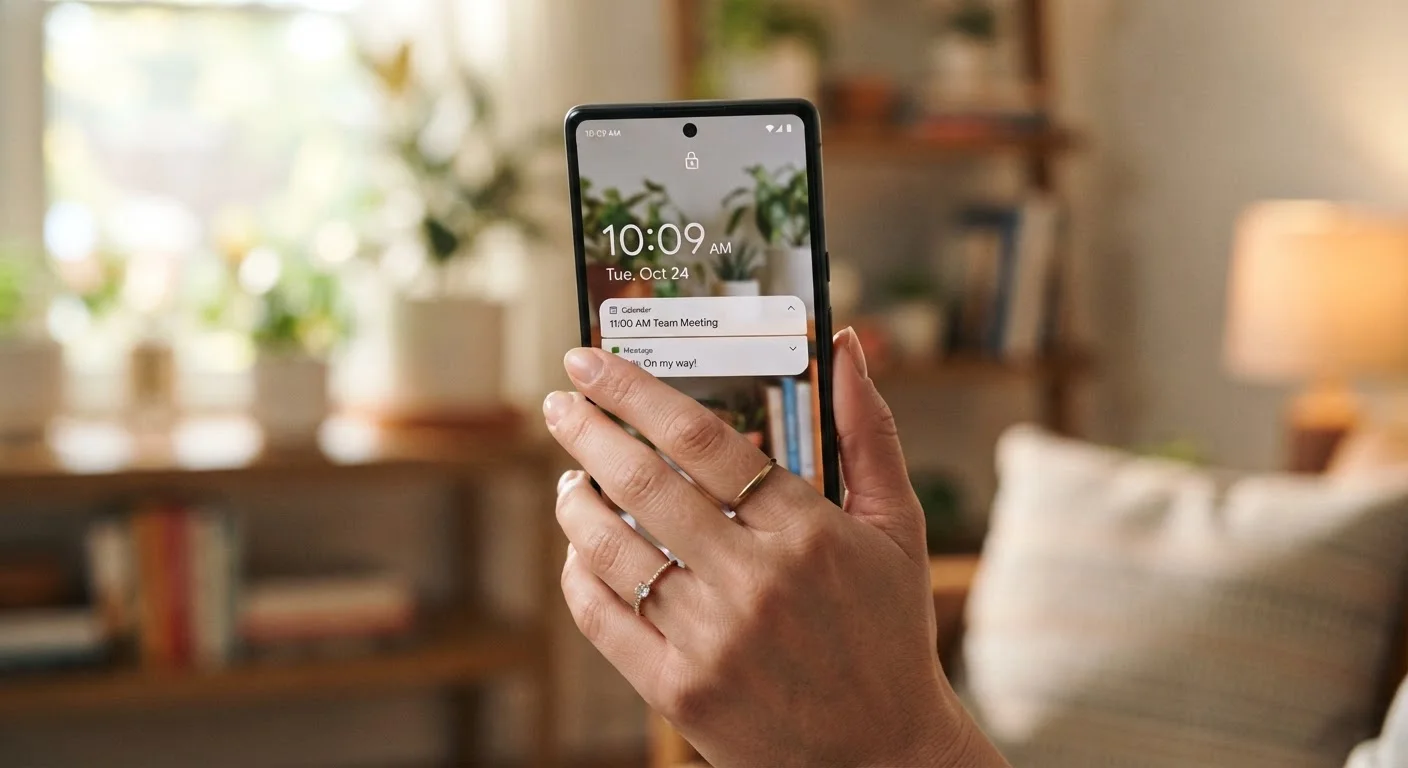
Avoid short PINs (four digits) and swipe patterns that are visible as smudges on the screen. Six-digit PINs or longer passwords are meaningfully harder to guess. Also consider what your lock screen shows before you unlock it - notification previews can expose message content to anyone nearby. You can usually limit this in your notification settings.
Enable Two-Factor Authentication on Key Accounts
Your lock screen protects your phone, but two-factor authentication (2FA) protects your accounts even if someone gets your password. Enable it on your email, banking, and social media accounts first - these are the highest-value targets. Most apps offer 2FA in their security or account settings.
For a deeper look at settings worth adjusting, the smartphone privacy settings checklist covers lock screen exposure alongside other quick wins.
App Permissions: What You're Actually Agreeing To
Every app you install can request access to parts of your phone - your location, camera, microphone, contacts, or photo library. Granting these permissions isn't always wrong, but it's worth being deliberate about it.
The key question to ask is: does this app actually need this to work? A navigation app needs your location. A recipe app doesn't. Many apps request broad permissions because the data is valuable, not because it's essential to the service.
Both Android and iPhone let you review and adjust permissions at any time in Settings. Look for an "Apps" or "Privacy" section and you'll find a breakdown by app or by permission type. Revoking access you never consciously granted is a simple, effective step.
Be Careful with Third-Party App Stores
Downloading apps from outside your phone's official app store (Google Play or the Apple App Store) significantly raises the risk of installing malware. Unofficial sources don't apply the same review processes. Stick to official stores for routine app installs, and be skeptical of prompts asking you to install something from an unknown website.
While you're auditing permissions, it's also worth trimming apps you no longer use. Our guide to keeping your apps organised includes practical tips on app audits that overlap naturally with security habits.
Phishing and Scam Links on Mobile
On a phone, scams most often arrive as text messages (called smishing - SMS phishing) or through social media and email apps. The messages are designed to create urgency: a package delivery problem, a suspicious charge on your account, a prize you've won.
The link in these messages typically leads to a convincing-looking fake page intended to steal your login credentials or personal information. On a phone screen, it's harder to inspect a URL carefully before tapping - which is exactly why mobile users are frequently targeted.
A few reliable habits help: don't tap links in unexpected messages, even if they look like they're from a familiar company. Instead, go directly to that company's app or website by typing the address yourself. If a message seems urgent, that urgency is usually manufactured - pause before acting. For a plain-English breakdown of the different scam types you might encounter, see this glossary of common online scams.
Software Updates, Backups, and Network Safety
Security researchers and phone manufacturers are in a continuous cycle: vulnerabilities are discovered, patches are written, and updates are released. When you delay an update, you leave known security holes open longer than necessary. Enabling automatic updates - for both your operating system and your apps - is one of the lowest-effort, highest-impact habits you can build.
Backups protect you when things go wrong, whether your phone is lost, stolen, or infected with malware. Both iPhone and Android offer cloud backup options that run automatically in the background. If you're weighing the trade-offs between cloud and local backup methods, the cloud vs. local backup guide explains the differences clearly.
Finally, be cautious on public Wi-Fi. Open networks in cafes, airports, or hotels don't encrypt your traffic the way your home network does. Avoid accessing banking or sensitive accounts over public Wi-Fi when possible. For a plain-English explanation of how your phone's different wireless connections work, this Wi-Fi, mobile data, and Bluetooth reference is worth a look.
Smartphone Privacy Settings Checklist
A practical audit of location access, ad tracking, lock screen exposure, and app data sharing. Useful once you've read this guide and want to act on specific settings.
Plain-English Scam Glossary
Covers phishing, smishing, vishing, and other scam types in clear language - helpful for recognizing threats before they reach you.
Cloud vs. Local Backup Explainer
Helps you understand the trade-offs between backing up to the cloud versus a local device, so your data stays protected in a way that fits your habits.
Frequently Asked Questions
A strong PIN (six or more digits), a unique password, or biometric authentication like fingerprint or face ID all provide solid protection. A short four-digit PIN or a simple swipe pattern is easier for others to guess or observe. Using any of the stronger options is a meaningful upgrade over no lock at all.
If an app requests access to data it doesn't obviously need - like a flashlight app asking for your contacts - that's a red flag. You can review and revoke individual permissions in your phone's Settings menu under Apps or Privacy. A good rule: grant only what's necessary for the app to function.
Public Wi-Fi carries more risk than your home network because others on the same network could potentially intercept unencrypted traffic. Avoid logging into banking or sensitive accounts on public Wi-Fi. If you need to use it regularly, a reputable VPN adds a layer of protection.
Install security updates as soon as they are available. Many updates patch vulnerabilities that attackers are already aware of. Enabling automatic updates is the simplest way to stay current without having to check manually.
Don't enter any information on the page that opened. Close the browser tab immediately. If you did enter credentials, change those passwords right away from a different device or secure network. Check your accounts for any suspicious activity and consider alerting your bank if financial information was involved.
The content on this site is for informational purposes only and is not a substitute for professional advice. Always consult a qualified professional for guidance specific to your situation.